01
Hero message
The opening promise and supporting line that set the hook.
URL to video · Website to video
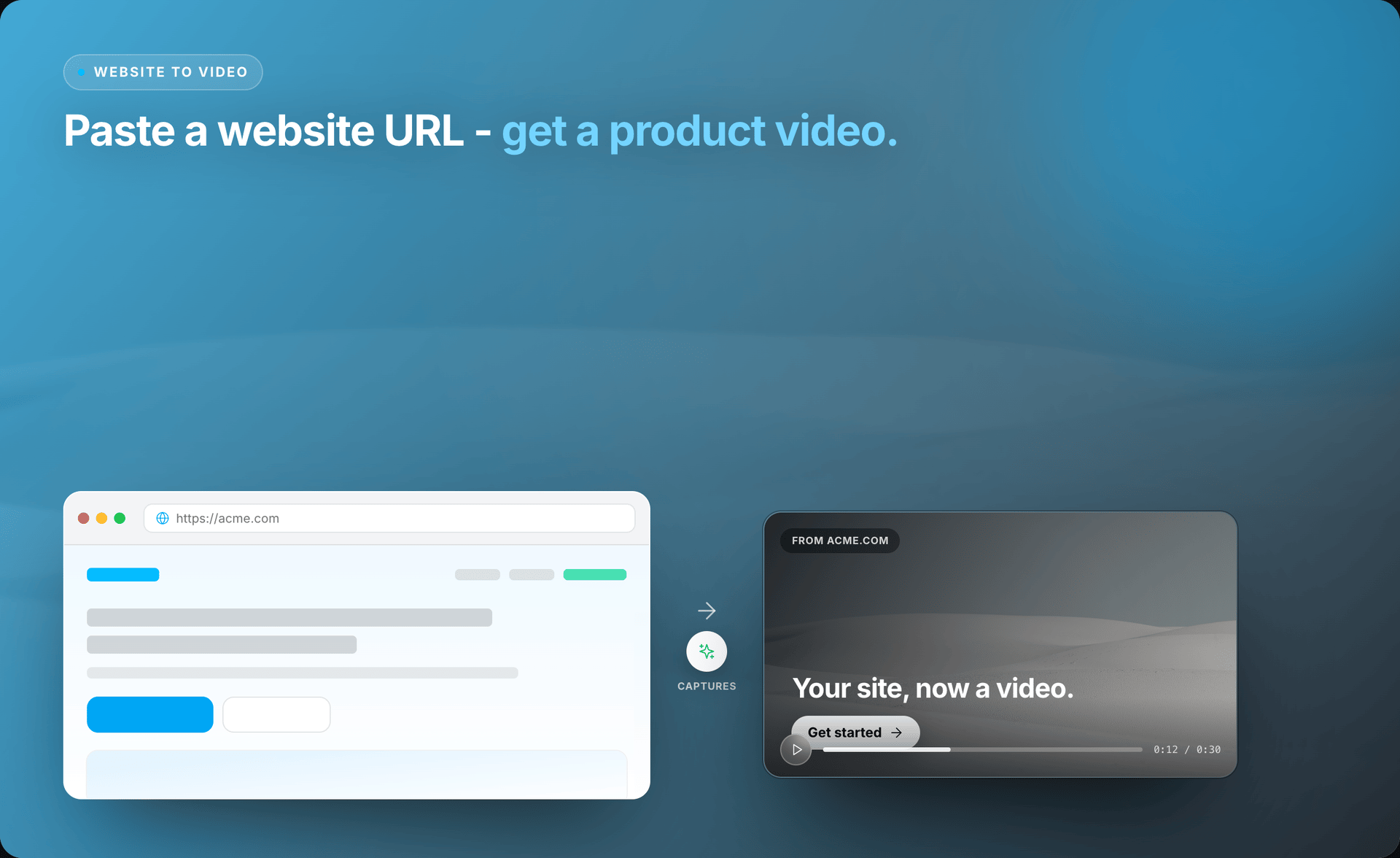
Source To Video captures the message, visuals, product sections, and call to action from a public page — then turns them into clear scenes you can review and change.
Public page → editable storyboard → MP4 on your machine.
Why start from the URL
You already spent time making the page clear. Source To Video uses that work instead of asking for another long brief. It finds the opening promise, product details, proof, images, and call to action.
You see what was found before the video is built. That helps you catch a weak source page early and keeps the first cut close to the message you want people to remember.
The result is a story people watch — not a recording of someone scrolling down the site.
01
The opening promise and supporting line that set the hook.
02
Product details and benefits already ordered on the page.
03
Logo, colors, images, and visible interface examples.
04
The next step the page already asks visitors to take.
Workflow
You stay involved where judgment matters. Source To Video handles the setup work — capture, storyboard, and first scenes.
01
Choose one page with a clear purpose. Source To Video checks that it can open the page and starts a capture of the visible content.
02
See the headline, supporting copy, structure, images, colors, and product sections that can guide the first draft.
03
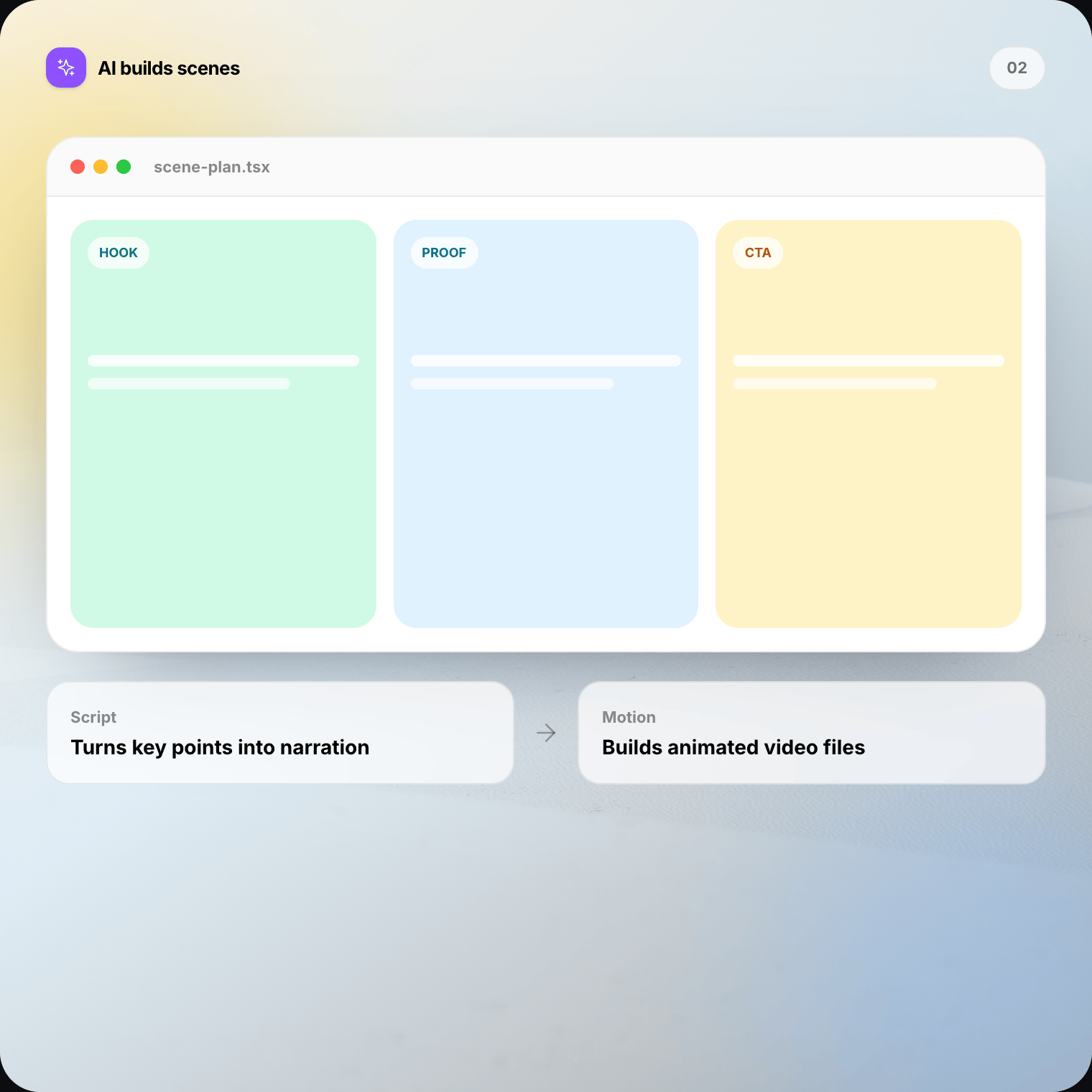
The agent turns the page message into a sequence of editable scenes — not one long screen recording of someone scrolling.
04
Ask for changes, review the live preview, and render the final MP4 on your Mac or Windows machine when it feels right.
Editable first cut
Ask Source To Video to shorten the opening, change the emphasis, reorder scenes, or make the ending more direct. Plain-English chat is useful when you know the outcome but do not want to rebuild by hand.
Then use Studio to check words, pacing, scene order, and visual focus until the video matches the job it needs to do.
What gets captured
Source To Video works with what a normal visitor can see. If important context is missing from the page, add it during editing or choose a better source.
Local-first
Source To Video captures the public page you choose as source material. Your editable project stays on your computer, and the final video renders there too.
Public does not mean free to reuse. Make sure you have the rights to the page copy, logos, images, and product screens included in your video.
When URL to video fits
Best when one offer or capability is explained clearly.
Useful for announcements with a date, promise, and next step.
Useful when the goal is to explain or summarize an idea.
Useful for turning finished work into a shareable story.
Blank timeline vs URL
URL to video is not the right input for a private dashboard, an unfinished site, a page with several unrelated products, or a story that depends on facts not shown online. For a deck, document, research paper, or repository, start with those source workflows instead.
FAQ
Straight answers on website-to-video workflows, public page capture, editing, and permissions.
URL to video means using a public web page as the brief for an editable product video. Source To Video captures the visible message, structure, and visuals, then turns them into scenes you can refine in Studio before rendering locally.
Download Source To Video for Mac or Windows. Paste a public URL, review the storyboard, edit the scenes, and render the final video on your machine.