Face-aware reframing
Crops follow the presenter instead of one blind center crop — useful for vertical and social cuts.
Recording to video · Talking-head product video
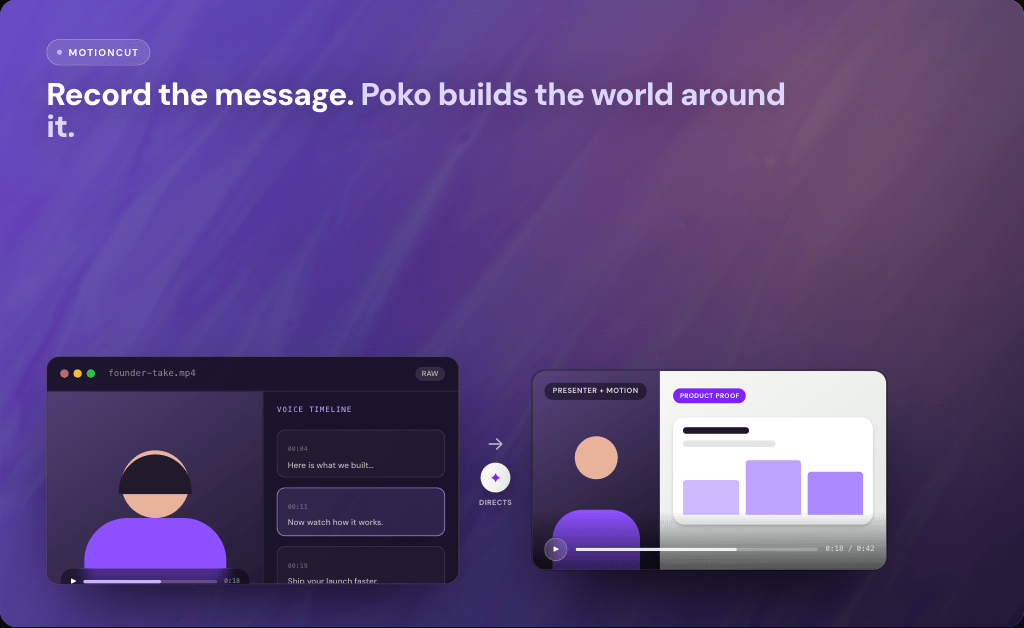
Upload a raw narrated recording. Source To Video keeps the presenter moments that matter and builds product proof, smart reframing, motion graphics, and transitions around your original delivery.
Your take → directed cutaways → editable Studio project → MP4 on your machine.
Why start from the take
Viewers trust a real person explaining the product. The hard part is everything else — crops, product inserts, graphics, and pacing that make the take feel finished.
Source To Video starts from your narrated recording. It keeps you in the cut and directs the visual layer around what you already said — instead of replacing you with an avatar or burying you under stock B-roll.
What gets directed
The recording is the spine. These layers make it watchable as a product video without erasing the presenter.
Crops follow the presenter instead of one blind center crop — useful for vertical and social cuts.
Full-screen motion and product proof land when you mention the feature, benefit, or proof point.
Titles, emphasis, and scene links support the story without burying your delivery.
Add URLs, repos, files, images, and brand assets so cutaways stay tied to the real product.
Workflow
You stay responsible for the message. Source To Video handles the first visual direction pass.
01
Capture the message on a phone, webcam, or camera. Focus on delivery — the agent will help build the visual world around it.
02
Open Source To Video and choose the file. Keep the take you trust; you do not need a finished edit first.
03
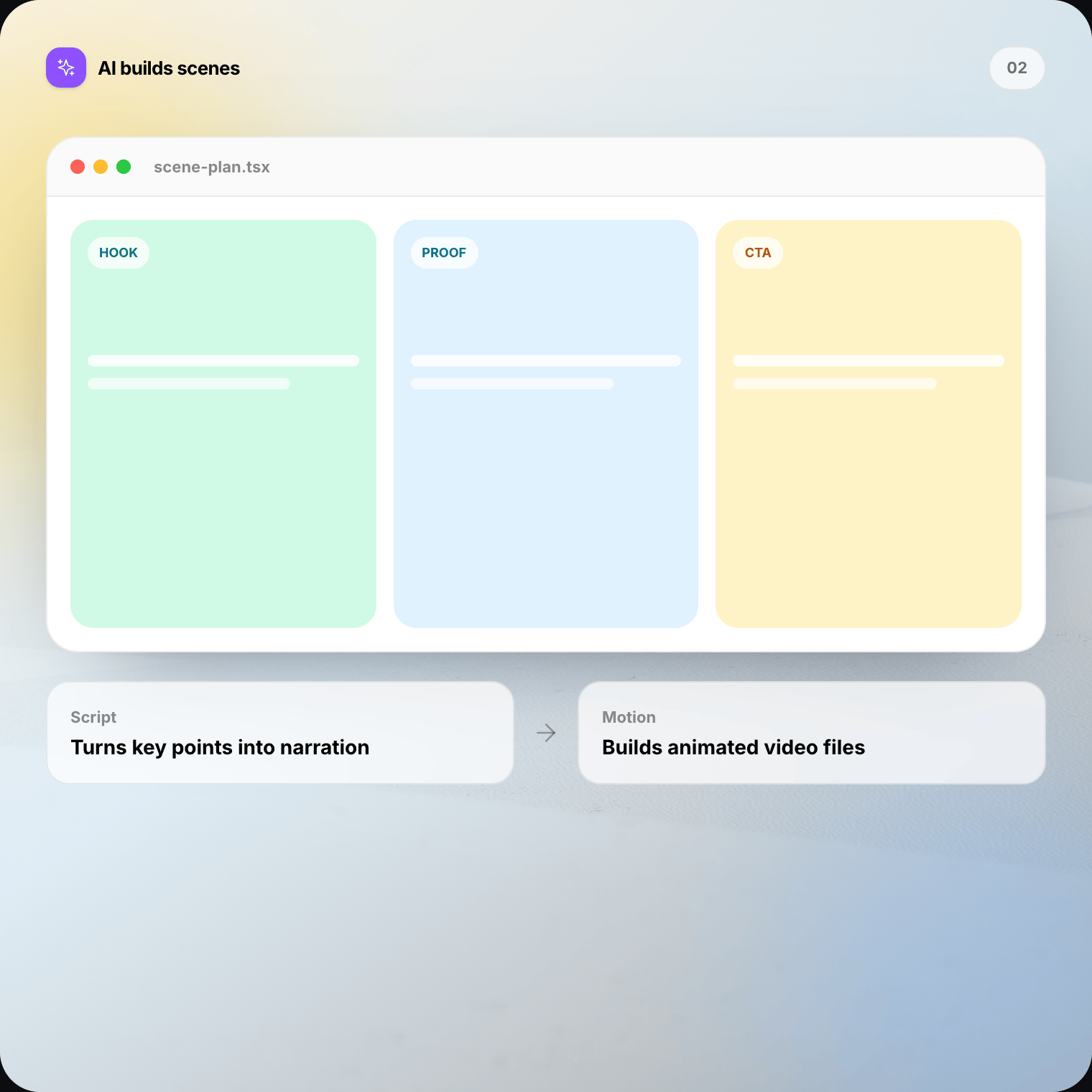
It uses what you say to plan where presenter moments stay full-frame and where product proof should interrupt.
04
Crops, cutaways, graphics, and transitions get a first pass while your face and voice remain the spine of the cut.
05
Tighten pacing, swap a weak cutaway, or add brand assets. When it feels right, render the MP4 on your Mac or Windows machine.
You vs the edit
Authenticity comes from the take. Polish comes from how the project frames and proves what you said.
When recording to video fits
Product Hunt, YC updates, and launch-week clips where founders should sound like themselves.
Longer takes that need cutaways and proof without rebuilding the edit from a blank timeline.
Keep the instructor on camera while visuals clarify steps at the right moments.
Reframe and punctuate a talking-head take for Instagram, Reels, or Shorts.
Personal delivery plus product proof in one watchable follow-up.
Show the product when you name it — without losing the human in the frame.
Editable first cut
Ask Source To Video to hold longer on your face for the hook, insert the dashboard when you name the feature, or quiet the graphics on the closing ask.
Preview live in Studio. Keep the authenticity of the take while you tune the product world around it.
Raw vs timeline vs stock AI
Generated talking-head ads from a URL are a different product. This workflow starts from footage you recorded — your face stays yours.
Choose the right source
If you do not have footage yet and the story lives in a codebase, landing page, document, or deck, start there instead. Recording to video is for when the person is already the best source.
Local-first
Source To Video runs on Mac and Windows. Your footage, editable project, and rendered MP4 remain on your computer. There is no cloud render queue for the final export.
AI work still needs context to understand speech and plan scenes. Only needed excerpts may travel to your selected provider. Review sensitive takes before you process them.
FAQ
Straight answers on talking-head product video, cutaways, editing, and when to use another source instead.
Recording to video means using a raw narrated take — your face and voice — as the source for an editable motion project. Source To Video keeps the presenter moments that matter and builds product cutaways, reframing, graphics, and transitions around your original delivery.
Download Source To Video for Mac or Windows. Upload a narrated take, direct the cutaways, and render the final video on your machine.