Headings and page order
They suggest the arc: opening, context, evidence, meaning, and next step.
PDF to video · Whitepaper to video
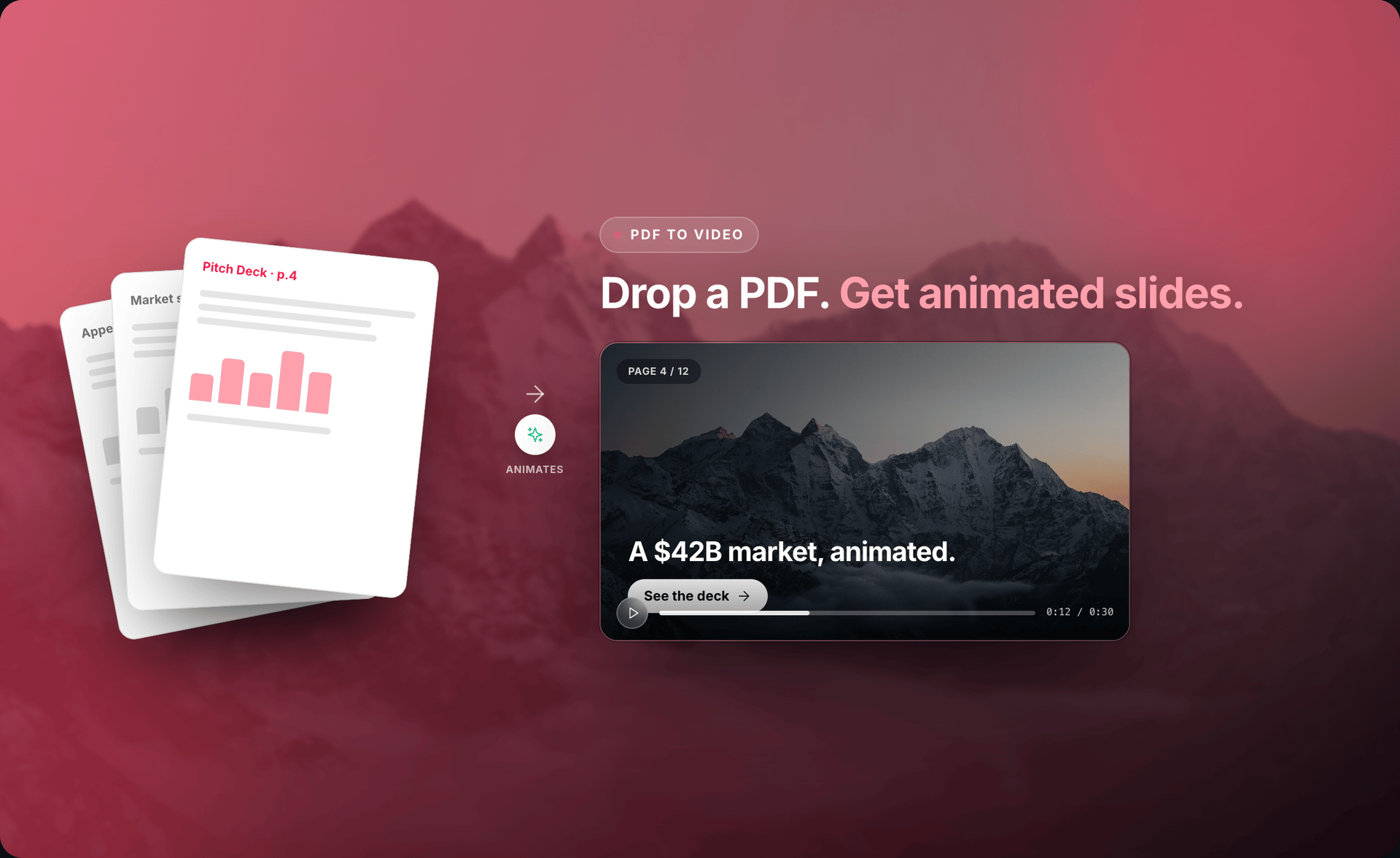
Upload a whitepaper, report, or guide. Source To Video pulls the key points into editable scenes grounded in the document — then you review, correct, and render locally.
Trusted PDF → editable Studio project → MP4 on your machine.
Why start from the PDF
Your PDF already has the facts, order, charts, and conclusion. Source To Video uses that work so you do not copy every page into a new script or rebuild the story from zero.
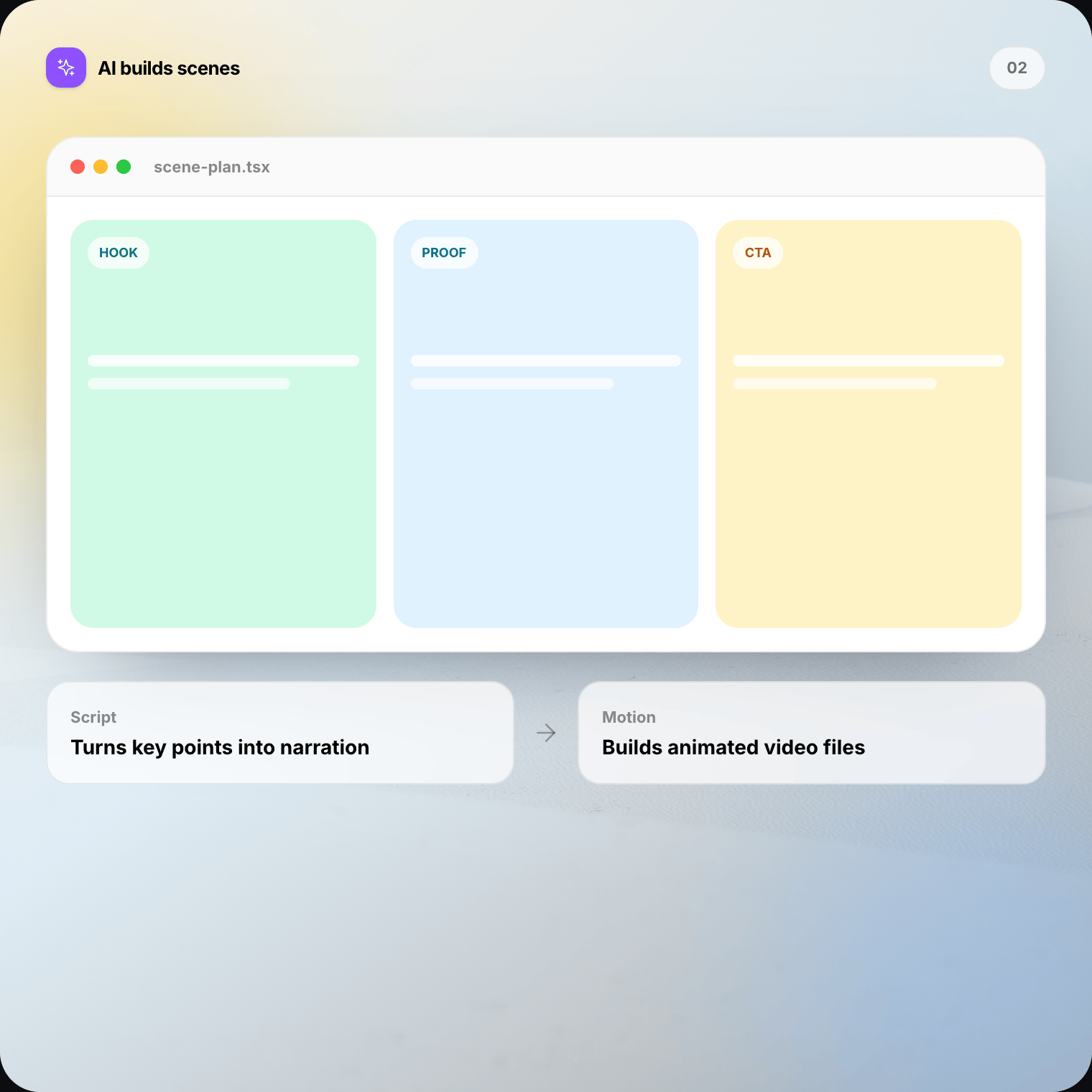
It turns long pages into short scenes. A heading can become the hook. A chart can become one clear proof point. A conclusion can become the final action.
You still control the result. Open the storyboard, change the words, move a scene, correct a fact, and preview the full video before you render.
What the document contributes
Clear content matters more than polished page design. Useful headings, readable text, labeled figures, and a clear conclusion give the project a solid base.
They suggest the arc: opening, context, evidence, meaning, and next step.
They supply facts and language for a shorter narration draft.
They point to evidence worth showing. Check every value and label in the final scene.
They can guide mood, while the video uses a cleaner layout built for motion.
Workflow
Source To Video handles the first draft. You stay involved where creative or factual judgment matters.
01
Open a PDF you already trust — the report, guide, whitepaper, or deck that holds the story you want to share.
02
Say who the video is for, what they should remember, and how long or formal the result should feel.
03
Source To Video uses the pages to draft a sequence, narration cues, and visual treatment — a Studio project, not a locked export.
04
Play the full story. Correct facts. Rewrite lines. Change order, timing, emphasis, or motion with direct prompts.
05
When the preview is ready, render the MP4 on your Mac or Windows computer and share it where your audience already watches.
Editable first cut
Your PDF gives the draft a factual base, not its final voice. Make the narration warmer, shorter, less technical, or more direct. Decide when a detail needs screen time instead of another sentence.
Watch the whole project before export. Ask for a change, check the result, and keep what works. Small, concrete prompts are often best — especially when correcting a number or claim from a specific page.
When PDF to video fits
Keep the PDF as the full source. Use a short video to help more people find and understand its main idea.
Lead with the problem, show the strongest proof, and send interested viewers to the full paper.
Turn a few approved findings into a short update for a wider company or customer audience.
Show the job, key steps, and outcome without recording a long page-by-page walkthrough.
Create a polished recap from a strategy document, audit, proposal, or campaign report.
Break a dense guide into a sequence that is easier to watch, discuss, and remember.
For academic papers that need careful methods and caveats, prefer our research paper workflow.
Open research paper to video →Slideshow vs motion
A manual slideshow is right when every page must appear exactly as designed. Source To Video is for understanding — splitting dense pages into clear beats, connecting related ideas, and leaving room for narration.
Human review
Check every name, date, number, quotation, label, and conclusion against the PDF. Make sure visuals do not imply more than the source says. Use extra review for regulated or sensitive topics.
Local-first
Your project, edits, preview, and final MP4 stay on your machine. AI context may go to your selected provider — check its terms and your settings before using confidential documents.
The final render happens locally on Mac or Windows. Review the file before choosing where to share it.
FAQ
Straight answers on whitepaper-to-video workflows, page vs scene conversion, fact checking, and local render.
PDF to video means using a document you already trust — a whitepaper, report, guide, or PDF deck — as the brief for an editable motion video. Source To Video drafts scenes and narration from the useful parts of the file, then opens the result in Studio so you can review before you render locally.
Download Source To Video for Mac or Windows. Open a PDF, review the scenes, correct what matters, and render the final video on your machine.